
User guide
Everything you need to use AnantPlay on a TV or a phone.
Install
Download the right file from the latest release.
| File | Use it on |
|---|---|
AnantPlay-TV-vX.Y.Z.apk | Android TV, Google TV, Fire TV and boxes. It adds the launcher entry and banner. |
AnantPlay-Android-vX.Y.Z.apk | Phones and tablets. |
Phone: open the downloaded file and allow installs from your browser or file manager when asked.
TV: put the APK on a USB drive and open it with a file manager, or install over the network:
adb connect TV_IP_ADDRESS:5555
adb install -r AnantPlay-TV-vX.Y.Z.apk
Fire TV
Works on Fire TV sticks, cubes and TVs with Fire OS 7 or newer (the Fire TV Stick 4K and every model since 2019).
- On the Fire TV: Settings, My Fire TV, About, then press OK on the device name 7 times until it says you are a developer.
- Install Downloader (by AFTVnews) from the Amazon Appstore: search for "Downloader".
- Settings, My Fire TV, Developer options, Install unknown apps: turn on Downloader.
- Open Downloader and type the code 6664733, or this address, then Go:
https://github.com/AnantPlay/android/releases/latest/download/AnantPlay-TV.apk - Install, then Open. Downloader offers to delete the file afterwards; say yes.
AnantPlay then updates itself from inside the app. To cast from your phone to the Fire TV, open AnantPlay on it once; the Fire TV shows up in the phone's Cast list as Name - AnantPlay.
Updates install over the old version, because every release is signed with the same key. You can check a file against SHA256SUMS.txt on the release page.
Is it safe? Yes. All of the code is on GitHub, and every release APK is built from it by GitHub Actions. To check a file yourself, search its SHA-256 from SHA256SUMS.txt on virustotal.com or upload it there. Google Play Protect may still say Harmful app blocked without giving a reason; tap Install anyway (under More details on some phones).
Updates from inside the app (2.14.0 and later): when a newer release is out, Home shows one line with an Install button. AnantPlay downloads it from GitHub and Android asks you to confirm; the first time, allow AnantPlay to install unknown apps. Settings, Check for updates looks right away, and Check automatically turns the automatic check off; it looks every hour and at every boot, even with the app closed.
Browse and play
The tabs are Home, Movies, TV, Sports, Anime and IPTV: on a rail down the left side on a TV (with Search on top, and WARP and Settings at the foot), along the bottom on a phone (Search, WARP and Settings are in the bar on top). They stay on every screen; pressing one from a title page or a list goes Home on that tab. On a phone, pull down at the top of a tab to load it again.
Search finds movies, series, channels and sites, by typing or by voice, with your recent searches under the box. On a TV it searches when you press Enter (the keyboard's Search key) and the remote lands on the first result; on a phone it searches as you type.
Your country first: Home opens with Movies and TV rows from your country, and the Movies and TV tabs open on your first language with a chip for each (India: Hindi, Tamil, Telugu...). Under a language chip come its New row (every release of the last year, newest first) and Popular row (the most voted for), then All, the whole list; the rows are refreshed every day. The country comes from the mobile network or the time zone; Settings, Your country changes it or turns it off.
- Sites are the streaming sites from the sources you added (Sources), grouped by what they carry. Pick one to open it. With no source added, each tab shows an Add sources button instead.
- Catalog rows show what is new and popular. Pick a title (its page has a Trailer button), then Watch on a site. On a movie, pressing a site plays it there. On a series, pressing a site only picks it (it gets an outline and the button says Watch on that site); Watch then carries on where you stopped (the next episode after one you finished), or starts the first, and any episode in the list plays on the picked site (50 at a time, Load more for the rest): on sites your title-links source knows it opens the title's own page (or the episode you picked), on the others it searches for the name and opens the match. Anime titles list anime sites only, and the sites that open episodes directly come first.
- Platforms (Home, Movies, TV) are the streaming services: pick one for rows of what is on it (Popular, Top rated, New, then a row per genre). Disney+ also has its brands on top (Disney, Pixar, Marvel, Star Wars, National Geographic). Studios and Kids on Home work the same way. A brand's page has its own rows (Marvel: MCU, Avengers, X-Men...) and All / Movies / Series chips.
- A row of titles shows 15; More at its end opens the whole list as a grid, in the same order.
- Continue watching on Home brings back the last titles you opened.
- Hold OK (long-press on a phone) on a site for favorites and mirrors.
When a site starts a video, AnantPlay takes it over and opens it in AnantPlayer. Back returns to the site, and the AnantPlayer button on the site's own player brings it back. Sites' "Join our Discord", "What's new" and donate pop-ups are closed for you.
Favorites and My list
Mark what you use most so it is one press away.
| What | How to mark it | Where it shows up |
|---|---|---|
| A site | Hold OK (long-press on a phone) on the site, then Add to favorites. The same menu removes it. | The Favorites row on Home |
| A title (movie or series) | Hold OK or long-press its poster. A message confirms Added to My list; do it again to remove it. On the title page you can also press + My list. | The My list row on Home |
| An IPTV channel | Hold OK or press Menu on the channel's card, then Add to favorites (a star appears on its name). | The Favorites row on the IPTV tab |
Settings, Your data clears favorites, watch history, IPTV history and My list.
Add your own site
Any website can live in the app, even one that is in none of your sources.
- On Home, find the Favorites row and press the + Add a site card.
- Type or paste the address (for example
example.com;https://is added for you) and press Add. - The site appears in Favorites. Open it like any other: AnantPlayer, ad blocking, the remote cursor and the Servers and Quality buttons all work on it.
Hold OK on it to remove it from your favorites.
TV remote
| Where | Key | What it does |
|---|---|---|
| Menus | Arrows, OK | Move and select. Left from a page reaches the rail; OK on a tab opens it with the focus on its first card. Up and Down stay inside the page, and coming back from a video returns to the card you left |
| Menu | Same as holding OK: favorites, mirrors, remove | |
| Sites | Arrows | Move a round cursor over the page (or the focus, in focus mode) |
| Hold OK 5 s | Switch between cursor and focus mode for that site | |
| Player | Left Right | Seek 10 s; hold to go faster (30 s, then 60 s) |
| OK / Play | Pause and play; when Skip intro or Next episode shows, it presses that | |
| Up | Show the controls | |
| Down / Menu | Move to the buttons; the one the remote is on shows its name above it | |
| Back | Close the player and return to the site | |
| Anywhere | Hold Back 3 s | Go straight to Home ("Going to Home…"), closing everything open |
Seeking waits until you stop pressing, then jumps once, so holding the key does not make the stream reload on every step.
Phone and tablet
| Gesture | What it does |
|---|---|
| Tap the video | Show or hide the controls |
| Double-tap the left or right third | Back or forward 10 seconds |
| Double-tap the middle | Pause and play |
| Hold the right half | Play at 2x until you let go |
| Hold the left half | Go back at 2x until you let go |
| Swipe up or down on the left half | Brightness |
| Swipe up or down on the right half | Volume |
| Drag the progress bar | Seek (it jumps once, when you let go) |
The two swipes can be turned off in Settings, Player, Swipe for brightness and volume.
The player follows the rotation lock (the Full screen button turns it), and it keeps clear of camera cut-outs. Picture in picture: press Home while a video plays and it keeps playing in a small window, with play and pause; tap it for full screen, close it to stop.
Back to Home in one step: on a phone the player has a house button at the top right, and the same house sits at the top right of a website. On a TV open More in the player, or press Menu on a website, and pick Home. Everything open closes, and your place in the video is saved. While the app loads a page, searches for the title, opens the episode or starts the video, a translucent screen with the title, the current step and a spinner covers the site; tap it (or press Back) to see the page, and it closes by itself if a step gets stuck.
AnantPlayer
One row of buttons at the bottom; the line under the title says what is playing and what is picked. On a TV, picking something in a button's list (a quality, a server, a speed...) closes it and hides the controls, so the remote is back on the video; Back in a list returns to its button (for example Season 2 · Episode 3 · 1080p · English · Dub). A button only shows when it has something to offer.
| Button | What it does |
|---|---|
| Previous, Next | The episode before or after this one (series and anime). |
| Quality | The qualities the stream offers (with frame rate, for example 1080p60), or the site's own quality list for sites that serve one playlist per quality. Auto stops at what the device plays smoothly; Settings, Player, Highest quality sets the limit yourself. |
| Audio | The stream's audio tracks by language. The language you pick is remembered: the next videos start in it when they have it, otherwise in your device's language. |
| SUB / DUB | Anime: switches between subtitled and dubbed in one press. The badge says which is playing, and each site remembers your pick. |
| Episodes | A strip of episodes along the bottom, each with its picture and name, while the video keeps playing. The one playing is marked; pick another and it opens. For a live channel the same button is Channels (the channel's category in its country), for a movie More to watch. Down from the buttons opens it too; the button again, Back or a tap outside closes it. |
| Servers | The site's own servers (see below). |
| Subtitles | The stream's subtitles, Search subtitles, and Settings (size, position, color, background, timing). |
| Download | Saves the movie, series or anime you are watching (see Downloads). |
| More | Speed (0.5x to 2x), Sound boost (Volume boost and Dialog boost, each from 0 to 20, off at 0), Downloads, Zoom (Fit, Crop, which cuts the edges until the screen is full without squashing the picture, black bars inside the video included, and Stretch), Debug overlay and From the start. Debug overlay shows live numbers over the picture: size and frame rate, codec and whether the decoder is hardware or software, video and audio bitrate, network speed (last download, estimate, 30-second average, total), buffer, dropped frames, stream type and host, how long the video took to open, and memory. It stays on or off as you leave it. |
| Cast, Full screen | Send the video to a TV (phone), and turn the phone. |
Episodes, skipping and servers
Episodes: pick a series or anime episode from the catalog, or from the player's Episodes, Previous and Next. On sites whose episode addresses AnantPlay knows (34 TV and 22 anime sites) the episode opens directly; on the others AnantPlay opens the show's page and presses the episode in the site's own list, also when it sits behind the player's Episodes and Season menus. The new stream opens in AnantPlayer by itself.
Skip intro, recap and credits: during an intro or a "Previously on" a Skip intro button shows over the picture; tap it or press OK. At the credits it becomes Next episode; only your press moves on before the video ends. Settings, Skip intros skips intros and recaps without asking. The times come from TheIntroDB and AniSkip, so they are there for most popular shows, anime and many movies.
Servers lists the site's own servers (the buttons named Server, Source or Mirror, including ones behind a menu). Choose one: the player closes, AnantPlay presses it on the site, and the new stream opens by itself.
Cast to TV
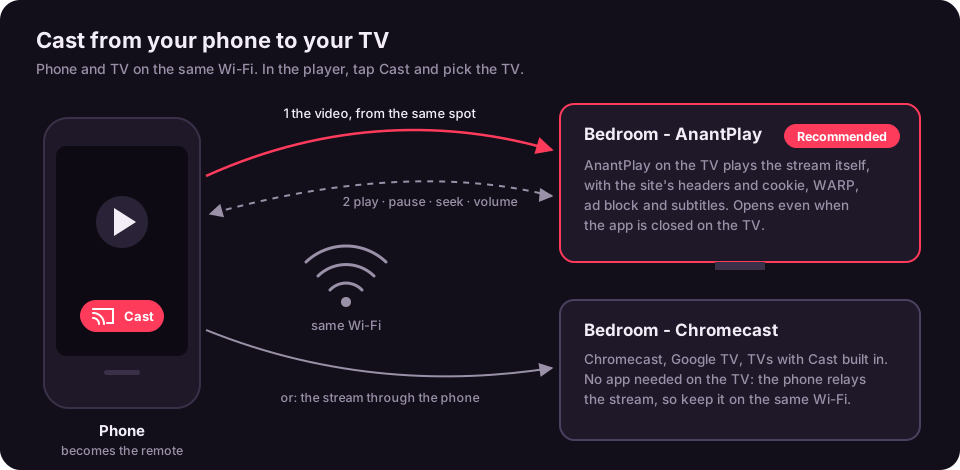
Play something on the phone, tap the screen, then tap Cast (the first button in the player) and pick a TV. The TV carries on from the same spot, and the phone becomes the remote: play and pause, the seek bar, −10 s and +10 s, and the TV's volume (the phone's volume keys work too). Stop casting brings the video back to the phone where the TV was. Re-scan, at the end of the list, looks for TVs again.
| In the list | What happens |
|---|---|
| Bedroom - AnantPlay (Recommended) | AnantPlay on the TV plays the stream itself, with the site's headers and cookie, WARP, ad blocking and subtitles. |
| Bedroom - Chromecast | Any Chromecast, Google TV or TV with Cast built in, without AnantPlay on it. The phone relays the stream, so keep it on and on the same Wi-Fi. |
| Living room - DLNA | Smart TVs with DLNA / UPnP (Samsung, LG, Sony, Kodi and others), also through the phone. Not every TV plays HLS streams; MP4 and TS streams work on most. |
Setting up the TV for AnantPlay casts: install the TV app and open it once. Then on the TV, open Settings, Cast to this TV and allow Display over other apps: after that a cast opens the player even when AnantPlay is closed.
Subtitles
Open Subtitles, choose Search subtitles, then a language (the one you picked last, your device's and English are on top, then every language by name) and a file. AnantPlay downloads the file, converts it so every script shows right (Arabic, Hindi, Chinese and the rest), and playback continues from the same spot. Search needs to know which title is playing: it comes from the catalog when you started from there, otherwise from the page's title and address.
Auto-sync: a file made for another release is often off, sometimes by minutes (a release with a recap). AnantPlay listens to the speech for a minute or two and lines the file up by itself; a message says when it did. Change the timing yourself and it leaves it alone.
The last entry in Subtitles, Settings, opens a panel with − and + buttons:
- Size and Position (+ moves them up, for TVs that show them too low or too high). Both are remembered, and Settings, Subtitles changes them too.
- Color and Background.
- Timing: + shows subtitles later, − earlier, 0.1 s a press. It applies to the video you are watching.
- Reset puts them back.
Downloads
While a movie, series or anime plays, press Download (the arrow pointing down, next to More). AnantPlay looks at the stream and asks first: it shows the file name and the full path of the folder, and the pencil next to each one changes it. Downloads keep going when you leave the app, with the progress in a notification.
- File names read like
Crawlers.2024.1080p.AnantPlay.mp4: the title and year (orS01E02and the episode name for a series), the quality, and the app's mark, with dots between the parts. - Several connections at once, 4 by default: a plain file is fetched in parts, an HLS stream a few pieces at a time. Change it in Settings, Downloads, Connections (1 to 8).
- Folder: Download/AnantPlay, or another one under Download, Movies or Documents in Settings, Downloads, Folder.
- The Downloads screen (More, Downloads, or Settings, Downloads) lists them with the file's path and a pause, play and bin button each; a tick marks a finished one. A paused download carries on from where it stopped.
- HLS and DASH streams are saved as
.mp4with a seek index, so the video can be skipped through. Pieces that are MPEG-TS, and streams that keep their sound in a playlist of its own, are joined into the.mp4at the end (it takes a moment). When that cannot be done (a sound an MP4 cannot hold, or timestamps the phone cannot read) the file stays a.tsand the Downloads screen says why; its round arrow button makes a finished.tsinto an.mp4you can seek in. DASH takes the best MP4 picture and sound it lists (WebM streams are skipped). Live streams, protected (DRM) streams and streams with no sound are not downloaded: the Download button says why at once.
Simkl
Simkl is a free watch tracker. Connect it once and the movies and episodes you watch are marked watched there.
- Open Settings, Simkl and press Connect. A code appears.
- On your phone or computer open
simkl.com/pin, sign in (or make a free account) and enter the code. - The TV says Connected by itself.
Only titles opened from Movies, TV or Anime count, since they carry the title's IMDb id. A title is marked watched once you pass 80% in AnantPlayer. Press Settings, Simkl again to disconnect.
PunchPlay
PunchPlay is another free tracker, and works the same way. You can connect both.
- Open Settings, PunchPlay and press Connect. A code appears.
- Open
punchplay.tv/link, sign in (or make a free account) and enter the code. - The app says Connected by itself.
PunchPlay sees when you start, pause and stop a movie or episode opened from Movies, TV or Anime, and marks it watched past 80%. Press Settings, PunchPlay again to disconnect. What is sent is listed on the privacy page.
IPTV
The IPTV tab starts with what you watched and your favorites, then your own playlists and pins, then your country's channels with its categories (News, Movies, Kids...), then every country and every category. In the player, Previous / Next and the remote's Channel + / Channel − move through the channel's category.
- Continue watching: the last channels you watched. Hold OK on a card to remove it or star it. Working channels (every channel that has played or passed the check) is the first card under Categories.
- Offline channels are hidden. A background check tests channels a few at a time and remembers the result (working for a week, not working for two days). A channel that fails when you press play stays listed. Show offline at the top of the IPTV tab lists the hidden ones: bring one back, or all of them, and the check never hides them again. Settings, Hide offline channels turns hiding off and Check channels now tests everything again.
- Search by typing or by voice, and filter inside any list by name.
- Category and Language chips above every channel list: in India, for example, pick News and Hindi. Categories start with Movies, TV, Kids and News; languages with the one you use for audio, the country's main one and English.
- Pins: the pin button next to the microphone keeps a list with its chips (India · News · Hindi) as its own row on the IPTV tab, near the top. Press it again in that list to unpin.
- Your playlists come first: each one you added has its own row under the name you gave it, and single stream links share a My streams row (see below).
- + Playlist (top right) adds your own playlist or a single stream link.
Add a stream or playlist
Press + Playlist on the IPTV tab (or Settings, Add a playlist or stream), paste a link and press Add. Give it a name: that is its row on the IPTV tab. Two kinds of link work:
| You paste | You get |
|---|---|
A playlist: an M3U file that lists channels (#EXTINF lines) | Every channel in it, with its name, logo and group, in its own row at the top of the IPTV tab |
A single stream: an .m3u8 (HLS) link, for example a camera, a live feed or a channel your provider gave you | One channel in My streams, under the name you gave it or named after the address (for example cdn.example.com · news). It plays in AnantPlayer like any other. |
- Xtream Codes: if your provider gave you a server, username and password instead of a link, press Xtream login in the same dialog. The provider's live channels show in their categories. The background channel check never tests them, so the account's connection limit is not used up.
- Stalker portal (MAC): if your provider gave you a portal address (often ending in
/c/) and a MAC address for a MAG box, press Stalker portal (MAC) in the same dialog and enter both. The channels get their own row; each one asks the portal for a fresh link when you play it, and the background check never tests them. - Links on your own network (a PC, a NAS, a media server) work too; they never go through WARP.
- Playlists are downloaded again every 12 hours and when you press Settings, Refresh IPTV channels. A single stream is kept as it is.
- Hold OK on a card in your playlists to star it. Remove a whole playlist in Settings: each one has its own row (press it, then Remove).
- If it says Not a playlist or stream link, open the link in a browser first: it should start with
#EXTM3U.
Sources
AnantPlay comes with no sites, channels or title links of its own. They come from sources you add in Settings, Sources:
- Open Settings, Sources. The AnantPlay index is listed there; press Add this index.
- Its sources appear below it, each with an Add button: streaming sites, channel playlists, title links. Add the ones you want; they download at once and refresh every 12 hours (Settings, Sites, Refresh sources does it now).
- Press a source again to remove it. 18+ sources are listed only after Settings, IPTV, 18+ is switched on.
Your own index: Add an index by link takes a link to an index.json you host anywhere (a repository, a gist, your own server). The format is described in AnantPlay/index; an older sources.txt list (label|url, @deeplinks|url) works too.
Updating from FMHYPlay 2.20.1 or older adds the index and the sources you had for you, once.
WARP and ad blocking
WARP (Settings, Connection) is a Cloudflare tunnel that carries only this app's traffic, with no VPN permission. It helps with networks that block sites or DNS. Addresses on your own network are never sent through it. Turn it off if a network does not allow it.
If WARP says it cannot connect (Settings, WARP log shows why): the first start signs up for a free WARP account with Cloudflare. AnantPlay looks for Cloudflare's address in several places at once and tries three times. If your network blocks DNS, open Settings, WARP DNS and type your internet provider's DNS addresses (they are on your router's status page); they are asked first. If the log says HTTP 429, Cloudflare is limiting sign-ups from your network: try again later or on another connection. WARP is optional: the app works without it, only blocked sites need it.
Ad block blocks ad and tracker domains, pop-ups and redirects on every site, using a domain list that refreshes weekly. If a site breaks, turn it off for a moment in Settings.
Troubleshooting
| Problem | Try |
|---|---|
| Play Protect says "Harmful app blocked" | Google gives no reason, and you can check the file on VirusTotal yourself. Tap Install anyway (under More details on some phones). See Is it safe? |
| A site does not open | Turn WARP on, or try a mirror (hold OK on the site). |
| The player does not start | Press Play on the page first. Some sites start the stream only after a click. Then use the AnantPlayer button on the site's player. |
| "AnantPlayer could not play this" | It goes back to the page, which still plays the video itself. Try another server from the page. |
| No Servers button | It appears only when the site's own buttons were found. Use the page's own controls for that site. |
| Picture looks zoomed after a quality change | Seen only on the Android emulator's software decoder; AnantPlay restarts the decoder there. On a device, set Zoom back to Fit. |
| IPTV channels disappear | They failed the check. Bring them back with Show offline on the IPTV tab, turn off Hide offline channels, or run Check channels now later. |